Before you start: you need a Google Business Profile
The review link belongs to your Google Business Profile, the free listing that shows your business on Google Search and Maps. If you’ve claimed and verified it, you’re ready. If not, search “Google Business Profile” and follow Google’s steps to claim your business first.
Option 1: from your Business Profile (easiest)
- Sign in to the Google account that manages your business.
- Search for your business name on Google. Your profile tools appear at the top of the results.
- Look for Ask for reviews (sometimes shown as Get more reviews or Share review form).
- Copy the link. It usually looks like g.page/r/…/review.
- Paste it into our form. That’s it.
Google moves its buttons around from time to time. If you can’t see “Ask for reviews”, try the Google Maps app: open your business, tap the share or promote options, and look for the review link there.
Option 2: build it from your Place ID
Every business on Google Maps has a Place ID. Search “Google Place ID finder”, look up your business, and copy the ID (it starts with “ChIJ”). Then put it on the end of this address:
https://search.google.com/local/writereview?placeid=YOUR_PLACE_ID
Test your link before you print
- Open it on your phone while signed in to a personal Google account. It should open your business with the stars ready to tap.
- Check it’s your business, not one with a similar name down the road.
- Don’t use a link to Google search results or your Maps listing. Those make people hunt for the review button, and many give up.
Turn it into a QR code sign
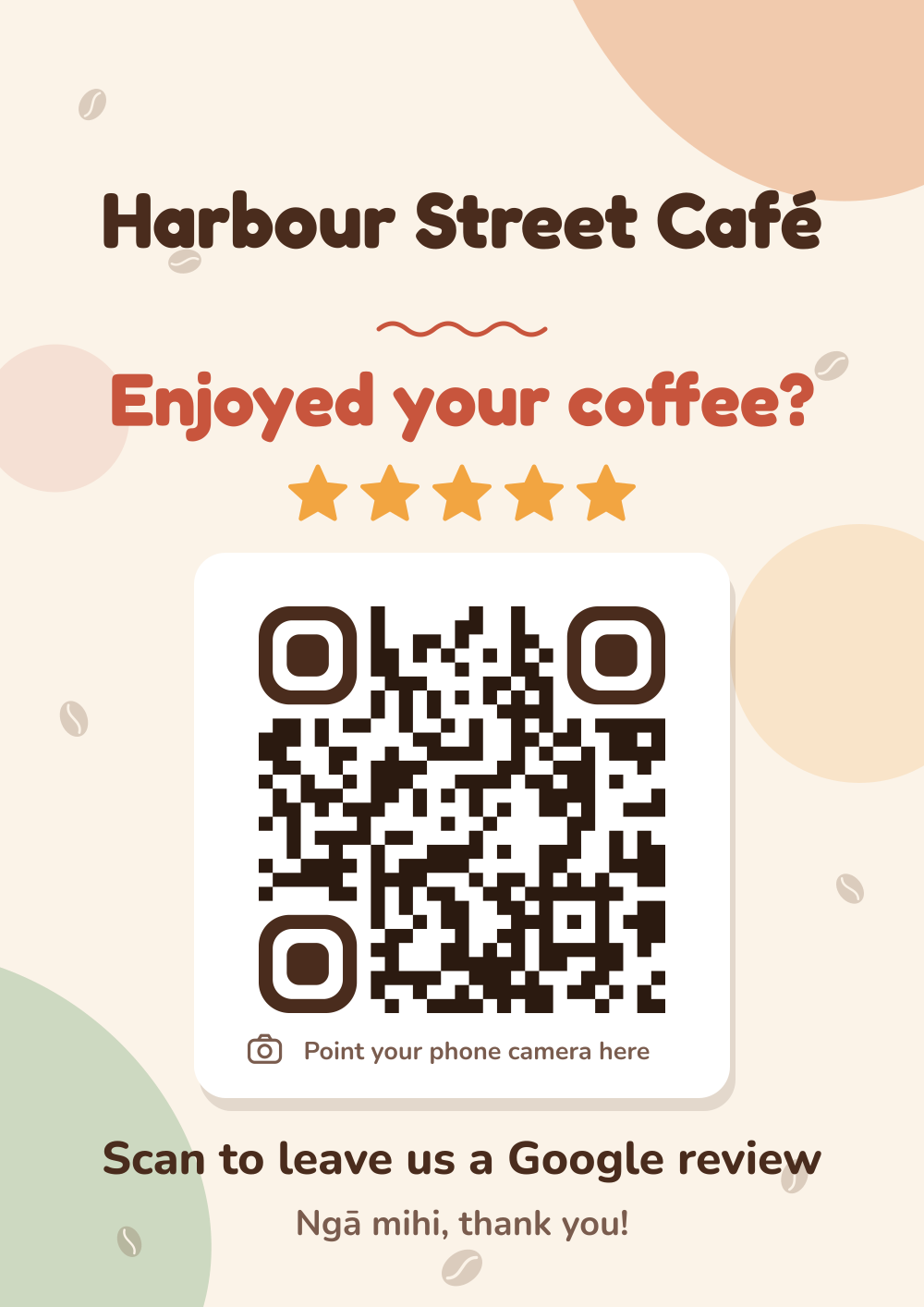
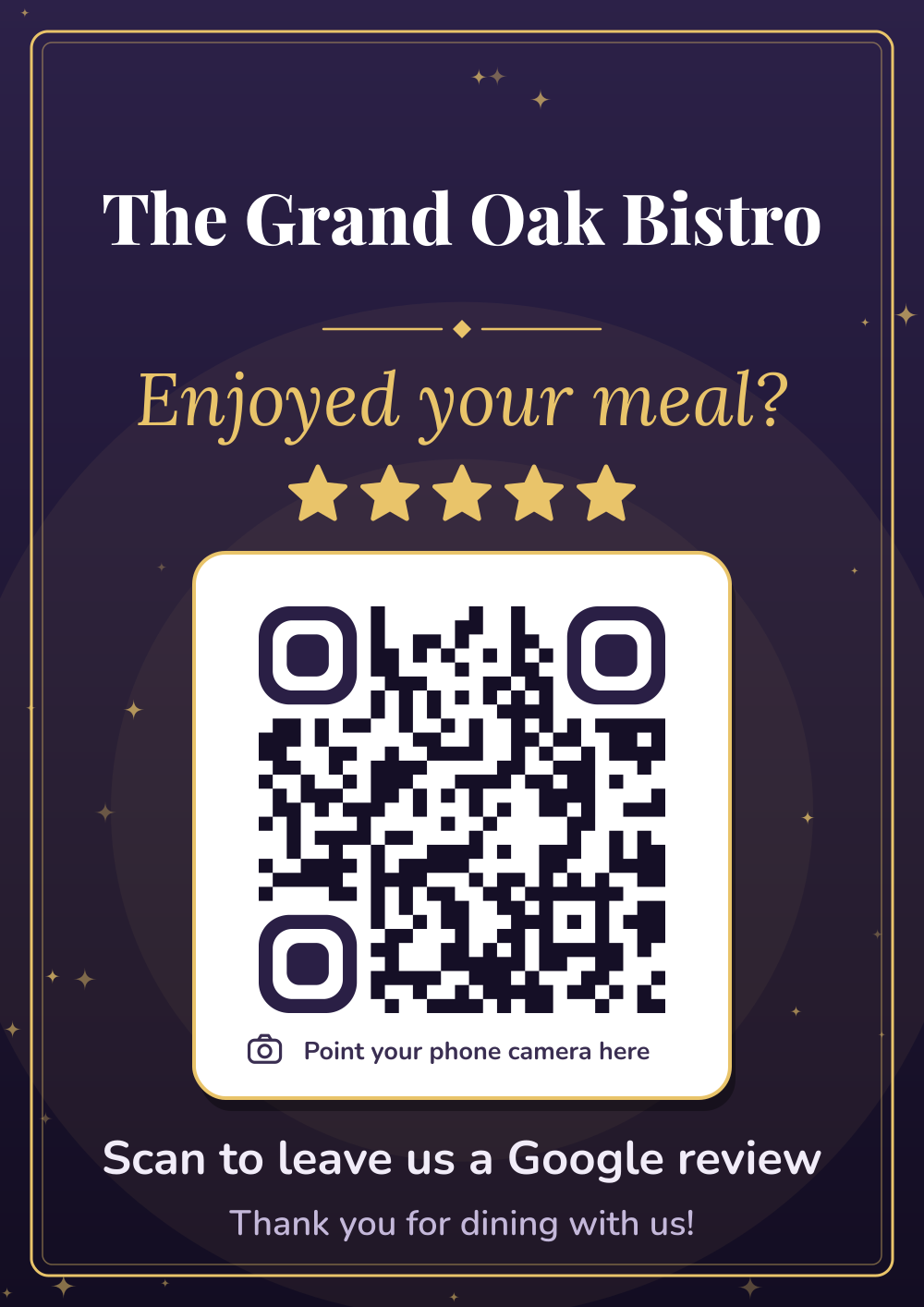
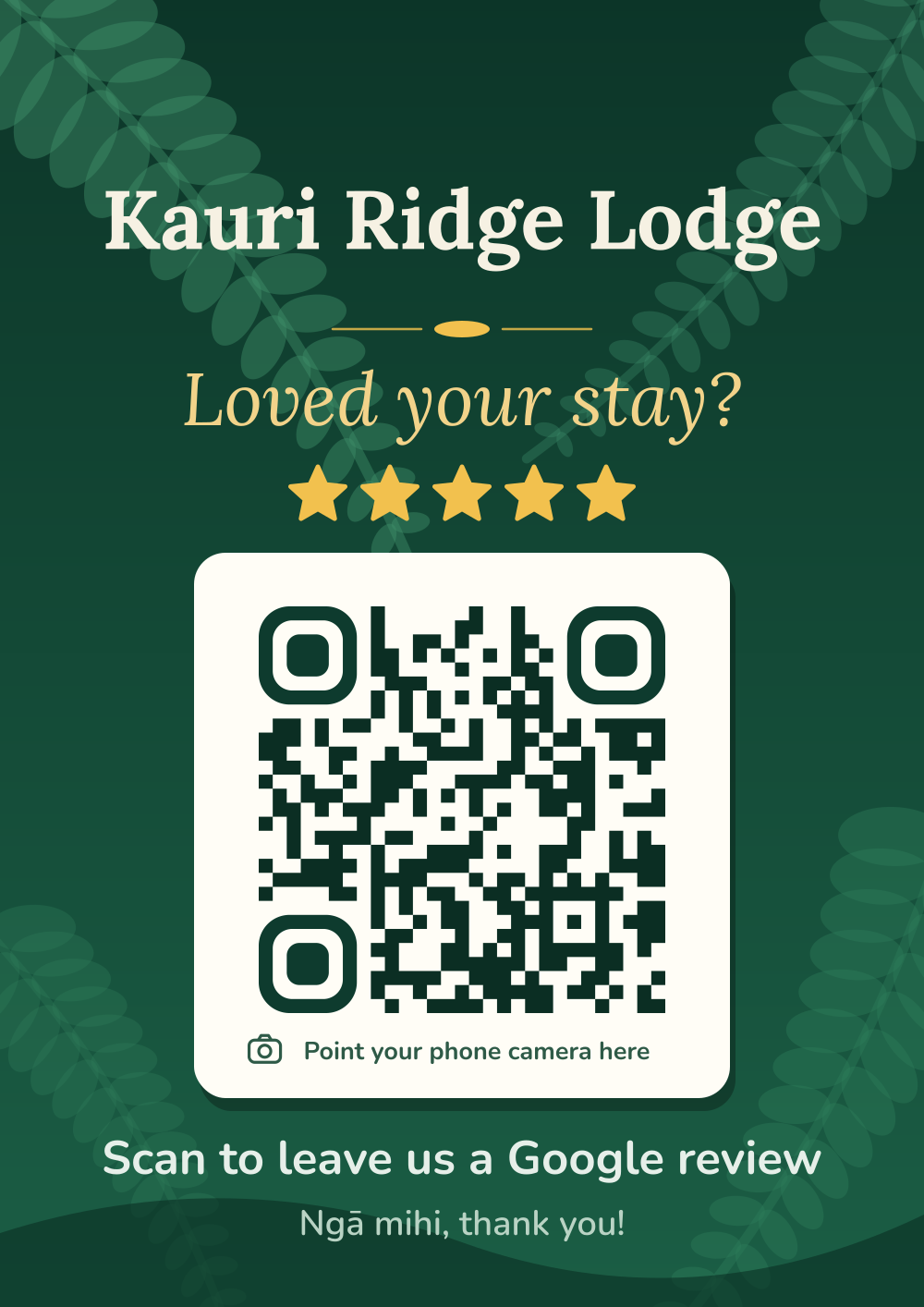
Paste your link into the order form, pick a design and see a live preview. You can even scan the preview with your phone to check it opens the right page. After you pay $5.99 you get a print-ready PDF (A4, A5 and A6 sizes), a TV slide and the QR code on its own, emailed in about a minute.